Press "Enter" to skip to content

Posts published in “Uncategorized”

           From Beginner to Pro: My Real-World Journey with Power Director

SuryaPratap@STVPS 0

    The Shining Stars:

  1. Performance: It’s blisteringly fast. The 360-degree video editing and 4K support aren’t just checkboxes. On my moderately powerful laptop, rendering feels quicker than other consumer-grade apps. The proxy editing (where it uses lighter files for editing) works silently in the background.
  2. Designer Content: The built-in library of motion graphics, titles, and effects (the "Director Suite") is vast. Need a polished lower-third title for an interview? It’s there. Animated social media end screens? Dozens of options. This library stopped me from needing to scour the internet for assets every single time.
  3. Audio Control: The audio mixing panel is surprisingly deep. You can keyframe volume, apply noise reduction (a lifesaver for windy footage), and use the equalizer to make that podcast voice sound rich and warm. For a mobile/desktop hybrid app, this level of audio control is a gift.

   The Reality Checks:

  1. Feature Overload: Sometimes, there’s too much. The wealth of effects, transitions, and packs can be distracting. I’ve lost an hour just playing with different transitions instead of finishing my edit. Discipline is required!
  2. The Subscription Nudge: While there’s a capable free version, to unlock the truly powerful tools (like the best AI features and stock libraries), you need a subscription. They frequently run sales, but it’s something to be aware of. The one-time purchase option for certain versions is a blessing for those who hate ongoing fees.
  3. Mobile vs. Desktop Sync: The PowerDirector mobile app is fantastic. But while project sharing between devices is possible, it’s not always a flawless experience with complex timelines. I use the mobile app for quick, on-the-go cuts and reserve the desktop for my main projects.

  My Personal Workflow: A Typical Project

 Dump & Rough Cut: I import all footage into the library, then drag the selects onto the timeline in roughly the right order. I use the Magic Movie Wizard if I’m in a huge rush—it creates a decent draft edit automatically.

  1. Craft the Story: Here’s where the manual work begins. I trim clips using the razor tool (shortcut ‘S’ is my best friend), add B-roll on overlay tracks, and sequence everything for pacing.
  2. Polish with AI & Effects: I stabilize shaky shots, correct color using the AI-powered HDR Effect, and drop in motion graphic titles from the content library. This is the fun part where the video comes alive.
  3. Sound Design & Export: I balance music, voiceovers, and sound effects using the audio ducking feature (which automatically lowers music when someone speaks). Finally, I hit produce and choose a YouTube-optimized 1080p preset. Done.

  Final Verdict: Who Is This For?

 PowerDirector isn’t just for beginners, and it’s not trying to be a full Adobe Premiere Pro replacement for Hollywood editors. It occupies a sweet spot that is  incredibly valuable. It’s perfect for:

  • Aspiring YouTubers who need professional results without a degree in editing.
  • Small Business owners creating marketing videos or social media content.
  • Hobbyists and families who want to turn phone footage into memorable movies.
  • Intermediate editors who want powerful tools without a steep monthly fee.

The Game-Changer: The AI Tools That Actually Work (Seriously)

I’m skeptical of AI buzzwords. Often, they’re gimmicks. But PowerDirector’s AI features are woven into the workflow so seamlessly you forget you’re using "AI." They simply feel like smart helpers.

  • AI Style Transfer: This was my "wow" moment. I had a bland, overcast beach video. With two clicks, the AI analyzed the clip and applied an artistic filter that made it look like a vibrant watercolor painting. It wasn’t just a slapped-on filter; it transformed textures, respecting the edges of waves and people. It felt like having a graphic designer in my pocket.
  • Object Detection & Tracking: Adding text or blurring a license plate used to be a frame-by-frame nightmare. PowerDirector’s object detection lets you highlight a person, a car, or anything, and it sticks to it across the entire clip. I used it to add a funny animated emoji that tracked my friend’s face throughout a clip. The precision saved me hours.
  • Voice-to-Text & Auto-Subtitles: As a content creator, this is non-negotiable. I uploaded a 10-minute voiceover, and within minutes, I had accurate subtitles synced to my audio. The editor allowed me to easily correct a few mumbled words. The time saved is monumental, and it makes my content instantly more accessible.

The Nitty-Gritty: Where It Shines and Where You Might Grind a Bit

  No software is perfect. After editing over 50 projects, here’s my honest breakdown:

  The Shining Stars:

  1. Performance: It’s blisteringly fast. The 360-degree video editing and 4K support aren’t just checkboxes. On my moderately powerful laptop, rendering feels quicker than other consumer-grade apps. The proxy editing (where it uses lighter files for editing) works silently in the background.
  2. Designer Content: The built-in library of motion graphics, titles, and effects (the "Director Suite") is vast. Need a polished lower-third title for an interview? It’s there. Animated social media end screens? Dozens of options. This library stopped me from needing to scour the internet for assets every single time.
  3. Audio Control: The audio mixing panel is surprisingly deep. You can keyframe volume, apply noise reduction (a lifesaver for windy footage), and use the equalizer to make that podcast voice sound rich and warm. For a mobile/desktop hybrid app, this level of audio control is a gift.

  The Reality Checks:

  1. Feature Overload: Sometimes, there’s too much. The wealth of effects, transitions, and packs can be distracting. I’ve lost an hour just playing with different transitions instead of finishing my edit. Discipline is required!
  2. The Subscription Nudge: While there’s a capable free version, to unlock the truly powerful tools (like the best AI features and stock libraries), you need a subscription. They frequently run sales, but it’s something to be aware of. The one-time purchase option for certain versions is a blessing for those who hate ongoing fees.
  3. Mobile vs. Desktop Sync: The PowerDirector mobile app is fantastic. But while project sharing between devices is possible, it’s not always a flawless experience with complex timelines. I use the mobile app for quick, on-the-go cuts and reserve the desktop for my main projects.

  My Personal Workflow: A Typical Project

 Here’s how I use it now:

  1. Dump & Rough Cut: I import all footage into the library, then drag the selects onto the timeline in roughly the right order. I use the Magic Movie Wizard if I’m in a huge rush—it creates a decent draft edit automatically.
  2. Craft the Story: Here’s where the manual work begins. I trim clips using the razor tool (shortcut ‘S’ is my best friend), add B-roll on overlay tracks, and sequence everything for pacing.
  3. Polish with AI & Effects: I stabilize shaky shots, correct color using the AI-powered HDR Effect, and drop in motion graphic titles from the content library. This is the fun part where the video comes alive.
  4. Sound Design & Export: I balance music, voiceovers, and sound effects using the audio ducking feature (which automatically lowers music when someone speaks). Finally, I hit produce and choose a YouTube-optimized 1080p preset. Done.

  Final Verdict: Who Is This For?

PowerDirector isn’t just for beginners, and it’s not trying to be a full Adobe Premiere Pro replacement for Hollywood editors. It occupies a sweet spot that is incredibly valuable. It’s perfect for:

  • Aspiring YouTubers who need professional results without a degree in editing.
  • Small Business owners creating marketing videos or social media content.
  • Hobbyists and families who want to turn phone footage into memorable movies.
  • Intermediate editors who want powerful tools without a steep monthly fee.

 The Sweet Spot: Features You’ll Actually Use

This is where it wins. It packs in advanced tools but presents them in a way that makes sense.

  • The AI Stuff That’s Not a Gimmick: I’m usually the first to ignore “AI-powered” buttons. But PowerDirector’s background remover and auto-reframe tools are shockingly good. They just work, saving you tedious manual cropping. The color match feature is another secret weapon—it makes all your different camera clips look like they belong together with one click.
  • No Lag, Even with 4K: On a modern phone, this app flies. Scrolling through a timeline full of HD clips is smooth. Rendering is quick. In a world where mobile apps often stutter, this reliability is everything.
  • A Library That Doesn’t Suck: The built-in stock footage, music tracks, and motion graphics templates are genuinely useful. They’re not just filler. 
  • used their animated titles and lower-thirds in real client projects, and they look polished.The Not-So-Perfect Bits (Let's Be Rea

It’s not all sunshine. The free version is solid, but you’ll hit walls. To unlock the truly cool stuff—like the full AI suite and premium assets—you need a subscription. The interface, while logical, has a lot of buttons. Sometimes you’ll tap around a bit to find a specific setting. And while the desktop and mobile versions sync, it’s best for simpler projects.

  What is One Video Editing –

SuryaPratap@STVPS 0

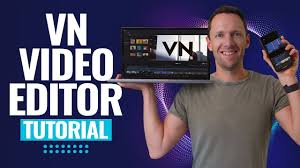
VN is a full-fledged video editing application available on both iOS and Android platforms. This is because of its simple, user-friendly approach that allows even newbies to become video pros. Earlier, it used to take weeks to learn the software, now the VN app teaches you cutting, trimming, text and music in minutes.

   how to start -

  1. Download and install – 

 Go to your phone's Playstore, search for One Video Editor and install it.

  1. create a new project -

  As soon as you open the app, you will see a plus sign and press on the new button.

  1. select video -

  Now select all the video clips and photos from your phone that you want to make into a video. These need to be stitched  together; they can be stitched together later.

  1. understand workspace -

 At the bottom of the screen, you'll see a timeline with your clip lined up. At the top of the screen, you can tap the timeline clip to access a wide range of editing options.

 Wizard editing tools 

  1. cut slip or trim -

 To shorten a long video, select the beginning or end of the clip in the timeline, click the icon, drag the plank to the cut point, click Split, then select the remaining portion and press the Delete button.

  1. The magic of waves -

 The connection between two photos and video clips is necessary to make them beautiful. By pressing the plus icon, you can write any text here, like you can change the font size, color and animation.

 voice and music

 . The video looks incomplete without sound and music

 background music

 . One has a music library where you can choose free songs and upload videos from your gallery.

 Recording a Voice Over

 . The app also offers the option to record your voice while watching a video. Press the microphone icon and start speaking.

 audio adjustment

 . The volume of each clip and music is increased and decreased so that the sounds do not clash with each other.

  slow down slow motion fast forward

 . There is also an option to slow down to create a scene and speed up to shorten a long video. Select it and press the speed icon.

  filter or color creation

 . Filters are the best way to change the video. There are many types of filters in VN and parameters like brightness reduction and correction can also be  adjusted.

 animation or stickers

 . To make your video more fun, you'll find tons of stickers and effects that can be overlaid on any clip. Pro-level pictures that will amaze you.

 keyframe animation

 . This is the most powerful feature of VN. With its help, you can move text stickers and clips from one point to another and can also increase or decrease the size. This increases the animation of the profection level in the video.

 Pictures and green screens

 Putting a video on top of another video and showing your own small window in a blog is done with Pip. The green screen effect lets you add distant photos and videos without blurring the background.

 high resolution export

 After editing is complete, the video can be saved in the 4K format. There is also an option to share it directly on platforms like YouTube and Instagram in the app.

      Benefits of One Video Editing    

  1. Absolutely free, no hidden charges and you can use basic and advanced features without any money.
  2. Once you start making videos offline, there is no need for internet. Finally, there is no need for internet even while exporting.
  3. Daily updates constantly add new filters, stickers, and more, making the app even better.

  Some important tips

 . Before you start free planning editing, think a little about what you want to create so that you can save time.

 . Avoid excessive stickers and animations as they make the video look ugly.

 . Take care of the audio; good audio quality doubles the audio quality, and avoid recording in noisy places.

 Conclusion

VN Video Editor is not just an app, it's a complete toolkit for everyone. Whether you're a student, a business owner, a YouTuber, or just someone who loves making videos for fun, VN has the ability to meet your every need. Its combination of simplicity and power makes it one of the best video editing apps on the market. Download VN today and start sharing your stories with the world through videos.

Its power hidden in simplicity, and its free features make it the preferred choice of millions of users worldwide. So why not try VN Video Editor today Download it and showcase your ideas, your talent, and your world through a stunning video. Remember, every great video editor starts one day. Yours could be with VN Its power hidden in simplicity, and professional features offered for free, make it the preferred choice of millions of users worldwide. So why not download VN Video Editor today?

 VN Editing Workflow → Blog Creation Workflow

 1. Pre-production → Topic Research & Planning

 2. Shooting → Content Writing

 3. Editing → Formatting & SEO Optimization

 4. Post-production → Publishing & Promotion

  Film/Video Editing Tutorials Blog

  Visual Storytelling Techniques

  Content Creator Resources

  Digital Art & Media Production

  Tech Reviews with Visual Emphasis 

 Phase 1: Foundation (First Month)

 Choose a Platform (WordPress, Blogger, Medium)

 Finalize Your Niche

 Write 5-10 Basic Posts

 Set Up a Simple Design

 Phase 2: Growth (2-3 months)

 Learn and implement SEO

 Start social media promotion

 Set up an email newsletter

 Do guest posting

 Phase 3: Monetization (4-6 months)

 affiliate marketing

 Sponsored posts

 digital products

 freelance services

  Free Tools:

 Canva (for graphics)

 Grammarly (for writing)

 Un plash (for images)

 Google Keyword Planner (for SEO)

 Learning Resources:

 Neil Patel's Blogging Guide

 HubSpot Blogging Academy

 YouTube: "Blogging for Beginners" Hindi Tutorials

 Success Tips:

 Consistency is Key: Publish 2-3 posts regularly a week.

 Your VN Edge: Give your video editing perspective a unique angle.

 Engage with Audience: Reply to Comments, Get Feedback.

 Analyze and Improve: Use Google Analytics.

 Footage into power full Story

 whether you are a editing video Clip

                                      The Human Touch in the Editing In shot 

SuryaPratap@STVPS 0

  Now, let's open the app. Forget the "Auto-Create" or "AI Edit" buttons. Your power is in manual control.

  1. The Rhythm of the Cut: Editing is Like Breathing

  Pacing is everything. It's the subconscious rhythm that holds your viewer.

Fast Cuts: Use rapid succession of clips for high energy—think workout montages, city life, or building excitement.

Slow, Held Shots: Let a beautiful landscape or an emotional moment breathe. Hold the shot to let the feeling sink in.

The Rule of "J-Cuts" and "L-Cuts": This is a pro secret you can easily replicate. A J-Cut means the audio from the next clip starts before its video appears (you hear the ocean waves before you see the beach). An L-Cut is the opposite: the video changes but the audio from the previous clip lingers (someone speaks while we see the listener's reaction). These cuts create seamless, professional flow and are fully manual functions in any good editor.

  2. Color Grading: Painting with Emotion (Without Presets)

  Don't just slap on a filter. Understand what color does.

Consistency First: Use the color correction tools to make all your clips look like they were shot at the same time and place. Match brightness, contrast, and white balance.

Create a Mood: This is where your human eye shines.

Warm & Golden (Orange/Teal Tweak): Slightly raise shadows toward orange and highlights toward teal for a cinematic, nostalgic, or adventurous feel.

Cool & Desaturated: Lower saturation and add a blue tint for somber, professional, or melancholic moods.

High Contrast & Vibrant: Pump up the contrast and saturation for lively vlogs, travel videos, or product highlights.

The key is subtlety. Adjust sliders by feel, not by a preset's dictate.

  3. The Power of Sound Design: 50% of Your Video

  Viewers will forgive imperfect visuals but not bad audio.

Clean Dialogue: If you're speaking, use a clip-on mic or record in a quiet room. Your phone's built-in mic is for emergencies only.

Layered Sound:

Music Bed: Choose music that matches your video's pace and emotion. Instrumental tracks are safest. Adjust the volume so it supports, not drowns, other sounds.

Sound Effects (SFX): This is the secret weapon. Add subtle whooshes for transitions, light ambient noise (cafe chatter, birds), or emphasized sounds (a camera click, a pen scribble). Don't overdo it.

Strategic Silence: A moment of complete silence right before a big reveal or after a powerful statement can be devastatingly effective

     Part 3: Advanced Human Craft: Directing the Viewer's Eye

  1. Text & Graphics That Don't Scream "Template"

Custom Fonts: Import a font that matches your brand's personality (e.g., a elegant serif for travel, a bold sans-serif for tech).

Minimalism: Less is more. Use text to emphasize, not explain everything. A single word on screen can be powerful.

Keyframing: This is your animation superpower. Use keyframes to make text or graphics move smoothly—slide in, grow, or fade out on your own timing. It tells the viewer where to look and adds a dynamic, handcrafted feel.

  2. Transitions with Purpose

  The best transition is often a simple cut. But when you do use one, make it mean something.

A swipe or push can indicate a change in location or time.

A subtle zoom-in blur transition can show a shift into a memory or thought.

A "glitch" effect should be used sparingly, only for a tech-related or intense emotional moment.

Avoid the dizzying array of flashy transitions. Choose one or two styles per video and stick with them for consistency.

  3. The Final Polish: The Viewer's Shoes

  Before you hit export, watch your video three times:

For Flow: Is the story clear? Does it drag anywhere? Do the cuts feel natural?

For Technicals: Check for awkward jumps, audio spikes, misplaced text, or color inconsistencies.

On a Different Device: Watch it on your laptop or a friend's phone. Does it still look and sound good?

     Conclusion: Your Fingerprint, Not a Algorithm's

 The true magic of a shot editing app isn't in its AI features; it's in how it puts a studio in your pocket, waiting for your direction. An AI can assemble clips, but it cannot understand the emotional weight of holding a shot for three extra seconds, the meaning behind your color palette choice, or the perfect timing of a sound effect that makes a moment land.

The difference between a generic video and a memorable one is human intention. It’s the pause you felt was right, the color grade that matched your memory of the sunset, and the music you chose because it resonated with the moment. These are choices born of feeling, not data.

Welcome to the new age of storytelling. In a world saturated with content, your unique perspective is your most powerful asset. Video is the language of this era, and the magic wand to speak it fluently sits right in your smartphone: the shot editing app.

Gone are the days when video editing was locked behind expensive software and steep learning curves. Apps like CapCut, InShot, Premiere Rush, and KineMaster have democratized creativity. But with great power comes a common dilemma: how do you move beyond basic cuts and flashy, auto-generated AI effects to create videos that truly feel like yours—videos with soul, rhythm, and a clear voice?

This guide is your answer. We’re diving deep into the art of mobile video editing, focusing on the human decisions that turn raw clips into compelling stories. Forget AI scripts and automated edits; this is about intentional, creative craftsmanship.

  1. Find Your "Why": The Core Story

Every great video is about something. What’s yours? Is it to make someone laugh, teach a skill, document a memory, or evoke a feeling? Write down your video’s single core purpose in one sentence. This "North Star" will guide every edit you make.

  2. Script & Shot List: Your Blueprint

For Vlogs/Talking Head Videos: Even a loose script prevents rambling. Jot down key points, a strong opening hook, and a concluding thought. It doesn't need to be word-for-word, but it provides structure.

                                                               video editing blog

SuryaPratap@STVPS 0

  Introduction - 

 In today's digital age, video is one of the most powerful ways to present content and ideas, to share knowledge and entertain people. YouTube is present everywhere. Behind every good video, there is a process called video editing. Video editing works in converting raw video into photos. The most different and most favorite video is Aaye. Let's understand the video in simple language. What is video editing, how does it work, how many types are there, what are the career prospects in it.

 what is video editing -

 Video editing is a process in which a video is created by joining, cutting, arranging and improving video clips. When a video is recorded  with a camera or mobile, it contains character mistakes, extra parts, interruptions or unwanted scenes. Video editing improves the quality of the video by removing these parts In simple words, video editing means making a video better by transforming the clip into a different location, adding music, adding effects, changing the colors of the video, and adjusting the sound.

 How video editing works - 

 Video editing follows a process; each step plays an important role in creating a video.

  1. Integrate and import photos - 

  The first step in video editing is collecting photos. These photos are recorded using camera drones or smart phone screen recording.       After recording, all the video file, audio, images, and graphics are imported into the video editing software.

  1. Reviewing Raw Footage - 

  After the file is collected, the editor carefully reviews all the video clips. This helps in identifying the best shots, mistakes and many elements. Only the photos that come in are used for editing.

  1. bite and lick

  In this step, the long video is stopped at a point and errors are removed. This makes the video short and interesting. This is an important part of video editing.

  1. Extending clips on the timeline -

   After the video, it is arranged in order on the timeline, ensuring that the video tells a story from start to finish.

  1. audio editing -

  Sound is very important in a video. Audio editing removes ambient noise, improves the clarity of sound, and adds music to it, making the video attractive.

  1. Color improvement and enhancement -

  Reduce or increase brightness with color correction, which improves color balance, making videos look better. Color grading can be used to create styles.

  1. Adding effects and graphics - 

  Add animations and effects to enhance the video.

  1. Editing the final video -

  After the video is completely ready, it is exported and then the video is ready to be uploaded on platforms like YouTube, Instagram, Facebook or websites.

Types of editing - 

  1. youtube video editing
  2. social media video editing
  3. corporate video editing
  4. video editing software

    have some tools -

  1. Cap cut 
  2. Vn editor
  3. Fil mora
  4. In shot
  5. Power Director
  6. Kin Master
  7. Adobe
  8. Premiere rush
  9. Viva video

Hello world!

SuryaPratap@STVPS 1

Welcome to WordPress. This is your first post. Edit or delete it, then start writing!