Press "Enter" to skip to content

Posts published by “SuryaPratap@STVPS”

Blog

SuryaPratap@STVPS 0

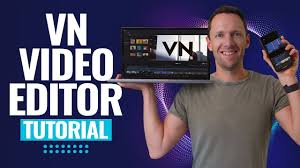
VN Editing App: A Free and Professional Video Editing Tool for Creators

In today’s digital world, video content has become an essential part of social media, education, marketing, and entertainment. From YouTube videos to Instagram reels and short films, video editing plays a major role in creating engaging content. One of the most popular free video editing apps available today is VN Video Editor, commonly known as VN Editing App.

VN is widely used by beginners as well as professional content creators because it offers powerful editing tools without adding a watermark. It combines simplicity with advanced features, making it a strong competitor among mobile and desktop video editing apps.


What is VN Editing App?

VN Video Editor is a free video editing application developed by Ubiquiti Labs, LLC. It is available for Android, iOS, Windows, and macOS. The app is designed to provide professional-level editing features in a simple and user-friendly interface.

Unlike many free editing apps, VN does not force a watermark on exported videos, which makes it very attractive for students, YouTubers, and social media creators.


Key Features of VN Editing App

1. Multi-Layer Timeline Editing

VN allows users to add multiple layers of video, text, images, and audio. This feature helps create complex and creative projects easily.

2. No Watermark

One of the biggest advantages of VN is that it allows watermark-free export even in the free version. This makes it stand out from many other editing apps.

3. Easy Cut, Trim, and Split Tools

The app provides simple tools to cut, trim, split, and merge clips. These tools are smooth and precise, helping users create clean edits.

4. Speed Control and Reverse

VN offers speed adjustment options, allowing users to create slow-motion and fast-motion videos. It also includes a reverse feature to play videos backward.

5. Advanced Transitions and Effects

VN includes a variety of transitions and visual effects that help make videos more engaging. Users can adjust transition duration and customize effects.

6. Text and Subtitle Tools

The app provides animated text styles and subtitle options. This is very useful for educational videos, vlogs, and storytelling content.

7. Audio Editing Features

VN allows users to add background music, sound effects, and voiceovers. Audio fade-in and fade-out options improve overall sound quality.

8. High-Quality Export

Users can export videos in HD and 4K resolution with customizable frame rates. This ensures professional output quality.


Advantages of VN Editing App

  • Completely free with no watermark
  • Supports multi-layer editing
  • Available on mobile and desktop
  • Easy interface for beginners
  • High-quality export options

Disadvantages of VN Editing App

  • Limited advanced color grading tools
  • Fewer built-in effects compared to premium apps
  • May lag on low-performance devices
  • Not ideal for large movie projects

Despite these minor limitations, VN remains one of the best free video editing apps.


Who Should Use VN Editing App?

VN is ideal for:

  • Students learning video editing
  • YouTubers and vloggers
  • Instagram reel creators
  • Social media managers
  • Beginners who want professional tools for free

If you want a free app that provides both basic and advanced editing tools without watermark, VN is an excellent choice.


VN vs Other Editing Apps

Compared to apps like CapCut and KineMaster, VN offers watermark-free export and a more professional editing timeline. While CapCut focuses heavily on templates and effects, VN provides more manual editing control.

VN is especially useful for users who want to learn proper timeline-based editing similar to desktop software.


Tips for Beginners Using VN

  1. Start with basic cut and trim features.
  2. Use simple transitions for a clean look.
  3. Adjust audio levels carefully.
  4. Export in HD for better video quality.
  5. Practice regularly to improve editing skills.

Conclusion

VN Editing App is a powerful, free, and professional video editing tool suitable for both beginners and experienced creators. Its watermark-free export, multi-layer editing, and high-quality output make it one of the best choices for mobile and desktop users.

Whether you are a student, content creator, or social media manager, VN provides all the essential tools to create attractive and professional videos without spending money.
Blog

SuryaPratap@STVPS 0

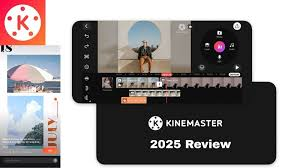
KineMaster Editing App: A Powerful Mobile Video Editor for Creators

In the modern digital era, video content has become the most effective way to share ideas, promote brands, and grow on social media platforms like YouTube, Instagram, and Facebook. To create attractive and professional videos, a reliable video editing app is required. One of the most popular and powerful mobile video editing apps is KineMaster.

KineMaster is widely used by YouTubers, vloggers, students, teachers, and digital marketers because it offers advanced editing features in a simple mobile interface. It allows users to create high-quality videos directly from their smartphones.


What is KineMaster?

KineMaster is a professional mobile video editing application developed by KineMaster Corporation. It is available for Android and iOS devices. The app is designed to provide desktop-level video editing features on mobile phones.

Unlike basic editing apps, KineMaster supports multi-layer editing, chroma key, advanced audio tools, and real-time video preview, making it suitable for both beginners and advanced users.


Key Features of KineMaster

1. Multi-Layer Video Editing

KineMaster allows users to add multiple layers of video, images, text, stickers, and effects. This feature helps in creating complex and professional-looking videos.

2. Easy Timeline Editing

The app provides a smooth timeline where users can cut, trim, split, and arrange video clips easily. Precision editing tools help create clean and well-timed videos.

3. Chroma Key (Green Screen)

One of the most popular features of KineMaster is the chroma key tool. It allows users to remove green backgrounds and replace them with custom images or videos. This feature is very useful for tutorials, presentations, and creative content.

4. Advanced Audio Editing

KineMaster offers powerful audio editing tools such as volume control, audio envelopes, voice recording, and background music support. Users can easily sync audio with video for better sound quality.

5. Effects, Transitions, and Stickers

The app includes a large collection of visual effects, transitions, filters, and stickers. These elements help make videos more engaging and visually appealing.

6. Speed Control and Animations

Users can adjust video speed to create slow-motion or fast-motion effects. Animation tools allow text and objects to move smoothly on screen.

7. High-Quality Export

KineMaster supports exporting videos in HD, Full HD, and even 4K resolution. Users can choose frame rate and video quality based on their needs.


Advantages of KineMaster

  • Professional editing features on mobile
  • Supports multi-layer and green screen editing
  • Easy-to-use interface
  • High-quality video export options
  • Suitable for beginners and professionals

Disadvantages of KineMaster

  • Free version includes watermark
  • Some features require subscription
  • Can feel heavy on low-end devices
  • Learning curve for advanced tools

Despite these limitations, KineMaster remains one of the best mobile video editing apps.


Who Should Use KineMaster?

KineMaster is ideal for:

  • YouTubers and vloggers
  • Students and teachers
  • Social media content creators
  • Digital marketers
  • Small business owners

If you want professional-level editing on your phone without using a computer, KineMaster is an excellent choice.


KineMaster vs Other Mobile Editing Apps

Compared to simple apps like YouCut or InShot, KineMaster offers more advanced tools such as chroma key and multi-layer editing. While apps like CapCut focus on templates and quick edits, KineMaster gives users more creative control.

It is especially useful for users who want to learn serious video editing skills on mobile.

Blog

SuryaPratap@STVPS 0

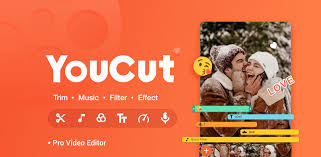
YouCut Editing App: A Simple and Powerful Video Editor for Beginners

In today’s digital world, short videos and reels have become extremely popular on platforms like YouTube, Instagram, Facebook, and WhatsApp. Whether you are a student, content creator, or small business owner, you need an easy video editing app to create attractive videos. One such popular and beginner-friendly app is YouCut.

YouCut is specially designed for users who want fast, clean, and watermark-free video editing on mobile phones. It is lightweight, easy to use, and perfect for daily video editing needs.


What is YouCut?

YouCut is a mobile video editing app developed by InShot Inc.. It is mainly available for Android devices and is known for its simple interface and useful editing tools. The app focuses on basic to mid-level editing, making it ideal for beginners.

Unlike heavy professional software, YouCut does not confuse users with complex features. Instead, it offers essential tools that help users edit videos quickly and efficiently.


Key Features of YouCut

1. Easy-to-Use Interface

YouCut has a very clean and simple interface. Users can easily import videos, cut unwanted parts, and arrange clips on the timeline. Even first-time users can understand the app within minutes.

2. No Watermark

One of the biggest advantages of YouCut is that it allows users to export videos without a watermark, even in the free version. This feature makes it very popular among students and beginners.

3. Video Cutting and Trimming

YouCut provides smooth tools to cut, trim, split, and merge video clips. These tools help remove unnecessary parts and create a clean final video.

4. Video Speed Control

With YouCut, users can adjust video speed easily. You can create slow-motion or fast-forward effects to make videos more interesting.

5. Music and Audio Editing

The app allows users to add background music, sound effects, and voiceovers. You can also control volume levels and fade-in or fade-out audio smoothly.

6. Filters and Effects

YouCut offers a collection of filters, effects, and overlays that help improve video appearance. These features are useful for making social media videos more attractive.

7. Aspect Ratio and Background

YouCut supports different aspect ratios like 16:9, 1:1, and 9:16. This makes it perfect for YouTube videos, Instagram reels, and WhatsApp status.


Advantages of YouCut

  • Very easy to use
  • No watermark in free version
  • Lightweight and fast performance
  • Good for beginners and students
  • Supports HD video export

Disadvantages of YouCut

  • Limited advanced features
  • Not suitable for professional filmmaking
  • Fewer effects compared to premium apps
  • Mostly available on Android only

Despite these limitations, YouCut is excellent for basic and everyday editing.


Who Should Use YouCut?

YouCut is ideal for:

  • Beginners learning video editing
  • Students and teachers
  • WhatsApp status and reel creators
  • Small content creators
  • Anyone who wants quick video editing

If you want a simple app for editing videos without spending money, YouCut is a great option.


YouCut vs Other Editing Apps

Many users compare YouCut with apps like InShot and CapCut. While CapCut offers advanced effects and animations, YouCut focuses on simplicity and clean editing. It is best for users who do not need heavy transitions or motion graphics.

YouCut is perfect for trimming, merging, adding music, and exporting videos quickly without watermark.


Tips for Beginners Using YouCut

  1. Start with basic trim and cut tools.
  2. Use filters lightly for natural look.
  3. Match video aspect ratio before editing.
  4. Add background music carefully.
  5. Export in HD for better quality.

Conclusion

YouCut is a simple, fast, and beginner-friendly video editing app that helps users create clean and professional-looking videos without complexity. Its no-watermark feature, easy interface, and smooth performance make it one of the best free editing apps for beginners.

Blog

SuryaPratap@STVPS 0

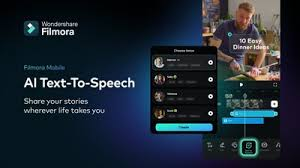
Filmora Editing App: A Beginner-Friendly Video Editing Software

In today’s digital age, video content plays a very important role in marketing, education, and entertainment. From YouTube videos to Instagram reels and business promotions, everyone needs an easy and effective video editing tool. One of the most popular and user-friendly video editing software is Filmora.

Filmora is widely used by beginners, students, YouTubers, and small businesses because of its simple interface and powerful features. It helps users create professional-looking videos without requiring advanced technical skills.


What is Filmora?

Filmora is a video editing software developed by Wondershare. It is available for Windows, macOS, and also has a mobile version for Android and iOS. Filmora is designed to make video editing simple, fast, and creative.

Unlike complex editing software, Filmora focuses on ease of use while still offering advanced tools like effects, transitions, audio editing, and motion graphics.


Key Features of Filmora

1. Easy and Clean Interface

Filmora has a simple drag-and-drop interface that makes editing easy for beginners. Users can easily import videos, images, and audio files and place them on the timeline.

2. Rich Effects and Transitions

Filmora offers a large library of built-in effects, filters, overlays, and transitions. These effects help make videos more engaging and visually attractive.

3. Advanced Editing Tools

Despite being beginner-friendly, Filmora includes advanced tools such as:

  • Split and trim tools
  • Speed control
  • Green screen (Chroma Key)
  • Picture-in-picture (PIP)
  • Motion tracking

These tools help users create professional-quality videos.

4. Audio Editing Features

Filmora provides strong audio editing options. Users can remove background noise, adjust audio levels, add sound effects, and sync audio with video easily.

5. Text and Titles

Filmora includes animated titles, lower-thirds, and text templates. These are very useful for YouTube videos, presentations, and social media content.

6. High-Quality Export Options

Users can export videos in different formats and resolutions, including HD and 4K. Videos can also be directly uploaded to platforms like YouTube and Vimeo.


Advantages of Filmora

  • Very easy to learn and use
  • Suitable for beginners and students
  • Large collection of effects and templates
  • Supports HD and 4K video export
  • Available on desktop and mobile

Disadvantages of Filmora

  • Free version includes watermark
  • Some advanced features require paid version
  • Limited customization compared to professional software
  • Not ideal for large film projects

Even with these limitations, Filmora is perfect for most everyday editing needs.


Who Should Use Filmora?

Filmora is ideal for:

  • Beginners learning video editing
  • Students and teachers
  • YouTubers and vloggers
  • Digital marketers
  • Small business owners

If you want good-quality videos without spending too much time learning complex software, Filmora is a great choice.


Filmora vs Professional Editing Software

Professional software like Adobe Premiere Pro is powerful but complex. Filmora focuses on simplicity and speed. It is best for short videos, social media content, educational videos, and YouTube channels.

For users who do not need very advanced editing, Filmora provides an excellent balance between features and ease of use.


Tips for Beginners Using Filmora

  1. Start with basic cut and trim tools.
  2. Use ready-made templates and effects.
  3. Avoid overusing transitions and filters.
  4. Learn audio tools for better sound quality.
  5. Upgrade to the paid version to remove watermark.

Conclusion

Filmora is a powerful yet beginner-friendly video editing app that helps users create professional-quality videos with ease. Its clean interface, creative effects, and useful editing tools make it a popular choice among beginners and content creators.

Whether you are a student, YouTuber, or business owner, Filmora is a reliable and affordable video editing solution to start your creative journey.

Blog

SuryaPratap@STVPS 0

LumaFusion Editing App: A Professional Video Editing Tool for Mobile Devices

With the rise of digital content, video editing is no longer limited to computers. Today, many creators prefer editing videos on tablets and smartphones. One of the most powerful and professional mobile video editing apps available is LumaFusion. It is widely used by journalists, filmmakers, YouTubers, and students who want desktop-level editing on mobile devices.

LumaFusion is specially designed for users who want advanced video editing features with a smooth and user-friendly experience. It offers powerful tools that help create high-quality videos directly on mobile platforms.


What is LumaFusion?

LumaFusion is a professional multi-track video editing app developed by LumaTouch. The app is mainly available on iOS and iPadOS devices such as iPhone and iPad, making it a popular choice among Apple users.

Unlike basic editing apps, LumaFusion provides advanced features like multi-track timeline editing, professional color correction, audio mixing, and support for high-resolution video formats. It is often considered a mobile alternative to desktop editing software.


Key Features of LumaFusion

1. Multi-Track Timeline Editing

LumaFusion allows users to edit videos using up to six video tracks and six audio tracks. This makes it easy to create complex projects with multiple clips, overlays, music, and sound effects.

2. Professional Editing Tools

The app offers advanced editing tools such as cut, trim, split, ripple edit, and magnetic timeline. These tools help editors work faster and more efficiently.

3. Advanced Color Correction

LumaFusion includes powerful color correction tools like color wheels, curves, and LUT (Look-Up Table) support. These features help enhance video quality and give a cinematic look.

4. High-Quality Audio Editing

Audio is an important part of video editing, and LumaFusion provides professional audio controls. Users can adjust audio levels, add keyframes, reduce noise, and apply equalization for clear sound.

5. Titles, Effects, and Transitions

The app includes built-in titles, transitions, and visual effects. Users can customize text styles, animations, and transitions to match their video theme.

6. Supports High-Resolution Videos

LumaFusion supports editing and exporting videos up to 4K resolution. It also supports different frame rates, making it suitable for professional projects.


Advantages of LumaFusion

  • Professional-level editing on mobile devices
  • Smooth and fast performance
  • Multi-track timeline support
  • Excellent audio and color tools
  • One-time purchase (no mandatory subscription)

Disadvantages of LumaFusion

  • Available mainly on iOS and iPadOS
  • Slight learning curve for beginners
  • Not free (paid app)
  • Requires powerful device for best performance

Despite these limitations, LumaFusion offers excellent value for users who want serious video editing on mobile.


Who Should Use LumaFusion?

LumaFusion is ideal for:

  • YouTubers and vloggers
  • Journalists and mobile filmmakers
  • Students learning video editing
  • Social media managers
  • Professionals who want editing on the go

If you want advanced editing features without using a computer, LumaFusion is a great choice.


LumaFusion vs Other Mobile Editing Apps

Compared to basic editing apps, LumaFusion stands out due to its professional tools and multi-track timeline. While many apps focus on simple social media edits, LumaFusion is designed for long videos, documentaries, and professional content.

It is often compared with desktop software but remains optimized for touch-based editing, especially on tablets like iPad.


Tips for Beginners

  1. Start with basic cuts and transitions.
  2. Learn timeline controls and gestures.
  3. Practice color correction slowly.
  4. Use headphones for better audio editing.
  5. Watch tutorials to understand advanced features.

Conclusion

LumaFusion is one of the best professional video editing apps available for mobile devices. It combines powerful features with a smooth and intuitive interface, making it suitable for both beginners and professionals. From multi-track editing to advanced color and audio tools, LumaFusion delivers high-quality results.

For anyone serious about video editing on mobile, LumaFusion is a reliable, powerful, and professional solution.

Blog

SuryaPratap@STVPS 0

Alight Motion Editing App: A Complete Guide for Video Creators

In today’s digital world, short videos, reels, and motion graphics are very popular on platforms like Instagram, YouTube, and TikTok. To create attractive and professional videos, a powerful editing app is required. One of the most popular mobile video editing apps is Alight Motion.

Alight Motion is specially designed for people who want advanced editing features on their mobile phones. It allows users to create motion graphics, animations, visual effects, and professional-quality videos easily. This app is widely used by content creators, influencers, and video editors.


What is Alight Motion?

Alight Motion is a mobile video editing and motion design app available for Android and iOS devices. It is developed by Alight Creative, Inc.. The app is known as one of the first mobile apps to provide professional motion graphics features.

Unlike simple editing apps, Alight Motion offers advanced tools such as keyframe animation, visual effects, blending modes, and vector graphics editing. It helps users create eye-catching videos directly from their smartphones.


Key Features of Alight Motion

1. Keyframe Animation

One of the best features of Alight Motion is keyframe animation. This allows users to control movement, rotation, scale, and opacity of objects frame by frame. It helps in creating smooth animations and transitions.

2. Multiple Layers Support

Alight Motion supports multiple layers for graphics, video, audio, shapes, and text. This gives users more control and flexibility while editing.

3. Visual Effects and Filters

The app provides many visual effects such as blur, shadow, glow, color adjustment, and distortion effects. These effects help make videos more creative and professional.

4. Blending Modes

Blending modes allow users to mix two layers in different ways. This feature is useful for creating cinematic effects and stylish edits.

5. Vector and Bitmap Support

Alight Motion supports both vector graphics and bitmap images. This makes it useful for graphic designers and motion designers.

6. Export Options

Users can export videos in different formats like MP4, GIF, and PNG sequences. However, the free version includes a watermark.


Advantages of Alight Motion

  • Advanced motion graphics features on mobile
  • Professional animation tools
  • User-friendly interface
  • Supports high-quality video export
  • Large community of creators for learning

Disadvantages of Alight Motion

  • Free version has watermark
  • Can lag on low-performance devices
  • Takes time to learn advanced features
  • Premium subscription required for full access

Who Should Use Alight Motion?

Alight Motion is best for:

  • Instagram reel creators
  • YouTube short video editors
  • Motion graphics beginners
  • Students learning animation
  • Social media content creators

If you want to create professional-level edits directly on your phone, Alight Motion is a powerful option.


Alight Motion vs Other Editing Apps

Many people compare Alight Motion with apps like CapCut and KineMaster. While CapCut and KineMaster are great for simple editing, Alight Motion stands out because of its advanced animation and motion graphics features.

Alight Motion is more suitable for users who want to create animated edits, fan edits, AMV videos, and professional motion content.


Tips for Beginners

  1. Start with basic editing tools before using advanced effects.
  2. Watch tutorial videos to understand keyframe animation.
  3. Use simple transitions and effects at first.
  4. Upgrade to premium version if you want watermark-free videos.
  5. Practice regularly to improve editing skills.

Conclusion

Alight Motion is a powerful and creative video editing app that provides professional animation and motion graphics tools on mobile devices. It is perfect for content creators who want to make high-quality and stylish videos. Although it has a learning curve, once you understand the features, you can create amazing video edits.

For students, influencers, and beginners in motion design, Alight Motion is a great choice to start their editing journey.

Blog

SuryaPratap@STVPS 0

Adobe Premiere Rush Editing App: A Complete Guide for Beginners

Video content has become one of the most powerful ways to communicate ideas, promote brands, and engage audiences on social media. From YouTube and Instagram to Facebook and TikTok, videos are everywhere. To meet this growing demand, easy-to-use video editing tools are essential. Adobe Premiere Rush is one such powerful yet beginner-friendly video editing app developed by Adobe.

Adobe Premiere Rush is designed especially for content creators, students, vloggers, and small businesses who want professional-looking videos without complex editing skills. It works smoothly on mobile phones, tablets, and desktops, making it a flexible choice for modern creators.


What is Adobe Premiere Rush?

Adobe Premiere Rush is a simplified version of Adobe Premiere Pro. It allows users to record, edit, and share videos quickly from one platform. The app supports cross-device editing, meaning you can start editing a video on your phone and continue on your laptop later.

The main goal of Premiere Rush is speed, simplicity, and quality. It is ideal for short videos, vlogs, reels, ads, and social media content.


Key Features of Adobe Premiere Rush

1. Easy-to-Use Interface

Adobe Premiere Rush has a clean and simple interface. Beginners can easily understand tools like cut, trim, drag, and drop. You don’t need any professional editing background to use this app.

2. Cross-Platform Editing

One of the best features of Premiere Rush is that it works on Windows, macOS, Android, and iOS. Your projects are synced automatically using Adobe Creative Cloud.

3. Built-in Templates and Presets

The app provides ready-made templates, transitions, and motion graphics. These help users create attractive videos quickly without designing everything from scratch.

4. Audio Editing Tools

Adobe Premiere Rush allows users to adjust audio levels, remove background noise, and add music. The Auto-Ducking feature automatically lowers background music when someone is speaking.

5. Color Correction

Basic color correction tools are available to improve brightness, contrast, and color balance. This helps make videos look more professional.

6. Direct Social Media Sharing

You can export and upload videos directly to platforms like YouTube, Instagram, Facebook, and TikTok with optimized aspect ratios.


Advantages of Adobe Premiere Rush

  • Beginner-friendly and easy to learn
  • Works on mobile and desktop devices
  • Fast video editing for social media
  • Professional quality output
  • Adobe brand reliability and regular updates

Limitations of Adobe Premiere Rush

  • Limited advanced features compared to Premiere Pro
  • Not suitable for long movies or complex projects
  • Free version has export limitations
  • Requires Adobe account and internet for sync

Despite these limitations, Premiere Rush is perfect for beginners and everyday content creators.


Who Should Use Adobe Premiere Rush?

Adobe Premiere Rush is ideal for:

  • Students learning video editing
  • Social media influencers and vloggers
  • Digital marketers and small businesses
  • YouTubers and Instagram reel creators
  • Beginners who want quick results

If you are looking for simple video editing without heavy technical tools, Premiere Rush is a great choice.


Adobe Premiere Rush vs Adobe Premiere Pro

Adobe Premiere Rush focuses on simplicity and speed, while Premiere Pro is designed for professional editors. Rush is best for short videos and social media, whereas Premiere Pro is suitable for films, documentaries, and advanced editing projects.


Conclusion

Adobe Premiere Rush is an excellent video editing app for beginners and content creators who want fast, high-quality results without complexity. Its simple interface, cross-platform support, and direct social media sharing make it a valuable tool in today’s digital world.

For anyone starting their journey in video editing or digital marketing, Adobe Premiere Rush is a smart and reliable option.

           From Beginner to Pro: My Real-World Journey with Power Director

SuryaPratap@STVPS 0

    The Shining Stars:

  1. Performance: It’s blisteringly fast. The 360-degree video editing and 4K support aren’t just checkboxes. On my moderately powerful laptop, rendering feels quicker than other consumer-grade apps. The proxy editing (where it uses lighter files for editing) works silently in the background.
  2. Designer Content: The built-in library of motion graphics, titles, and effects (the "Director Suite") is vast. Need a polished lower-third title for an interview? It’s there. Animated social media end screens? Dozens of options. This library stopped me from needing to scour the internet for assets every single time.
  3. Audio Control: The audio mixing panel is surprisingly deep. You can keyframe volume, apply noise reduction (a lifesaver for windy footage), and use the equalizer to make that podcast voice sound rich and warm. For a mobile/desktop hybrid app, this level of audio control is a gift.

   The Reality Checks:

  1. Feature Overload: Sometimes, there’s too much. The wealth of effects, transitions, and packs can be distracting. I’ve lost an hour just playing with different transitions instead of finishing my edit. Discipline is required!
  2. The Subscription Nudge: While there’s a capable free version, to unlock the truly powerful tools (like the best AI features and stock libraries), you need a subscription. They frequently run sales, but it’s something to be aware of. The one-time purchase option for certain versions is a blessing for those who hate ongoing fees.
  3. Mobile vs. Desktop Sync: The PowerDirector mobile app is fantastic. But while project sharing between devices is possible, it’s not always a flawless experience with complex timelines. I use the mobile app for quick, on-the-go cuts and reserve the desktop for my main projects.

  My Personal Workflow: A Typical Project

 Dump & Rough Cut: I import all footage into the library, then drag the selects onto the timeline in roughly the right order. I use the Magic Movie Wizard if I’m in a huge rush—it creates a decent draft edit automatically.

  1. Craft the Story: Here’s where the manual work begins. I trim clips using the razor tool (shortcut ‘S’ is my best friend), add B-roll on overlay tracks, and sequence everything for pacing.
  2. Polish with AI & Effects: I stabilize shaky shots, correct color using the AI-powered HDR Effect, and drop in motion graphic titles from the content library. This is the fun part where the video comes alive.
  3. Sound Design & Export: I balance music, voiceovers, and sound effects using the audio ducking feature (which automatically lowers music when someone speaks). Finally, I hit produce and choose a YouTube-optimized 1080p preset. Done.

  Final Verdict: Who Is This For?

 PowerDirector isn’t just for beginners, and it’s not trying to be a full Adobe Premiere Pro replacement for Hollywood editors. It occupies a sweet spot that is  incredibly valuable. It’s perfect for:

  • Aspiring YouTubers who need professional results without a degree in editing.
  • Small Business owners creating marketing videos or social media content.
  • Hobbyists and families who want to turn phone footage into memorable movies.
  • Intermediate editors who want powerful tools without a steep monthly fee.

The Game-Changer: The AI Tools That Actually Work (Seriously)

I’m skeptical of AI buzzwords. Often, they’re gimmicks. But PowerDirector’s AI features are woven into the workflow so seamlessly you forget you’re using "AI." They simply feel like smart helpers.

  • AI Style Transfer: This was my "wow" moment. I had a bland, overcast beach video. With two clicks, the AI analyzed the clip and applied an artistic filter that made it look like a vibrant watercolor painting. It wasn’t just a slapped-on filter; it transformed textures, respecting the edges of waves and people. It felt like having a graphic designer in my pocket.
  • Object Detection & Tracking: Adding text or blurring a license plate used to be a frame-by-frame nightmare. PowerDirector’s object detection lets you highlight a person, a car, or anything, and it sticks to it across the entire clip. I used it to add a funny animated emoji that tracked my friend’s face throughout a clip. The precision saved me hours.
  • Voice-to-Text & Auto-Subtitles: As a content creator, this is non-negotiable. I uploaded a 10-minute voiceover, and within minutes, I had accurate subtitles synced to my audio. The editor allowed me to easily correct a few mumbled words. The time saved is monumental, and it makes my content instantly more accessible.

The Nitty-Gritty: Where It Shines and Where You Might Grind a Bit

  No software is perfect. After editing over 50 projects, here’s my honest breakdown:

  The Shining Stars:

  1. Performance: It’s blisteringly fast. The 360-degree video editing and 4K support aren’t just checkboxes. On my moderately powerful laptop, rendering feels quicker than other consumer-grade apps. The proxy editing (where it uses lighter files for editing) works silently in the background.
  2. Designer Content: The built-in library of motion graphics, titles, and effects (the "Director Suite") is vast. Need a polished lower-third title for an interview? It’s there. Animated social media end screens? Dozens of options. This library stopped me from needing to scour the internet for assets every single time.
  3. Audio Control: The audio mixing panel is surprisingly deep. You can keyframe volume, apply noise reduction (a lifesaver for windy footage), and use the equalizer to make that podcast voice sound rich and warm. For a mobile/desktop hybrid app, this level of audio control is a gift.

  The Reality Checks:

  1. Feature Overload: Sometimes, there’s too much. The wealth of effects, transitions, and packs can be distracting. I’ve lost an hour just playing with different transitions instead of finishing my edit. Discipline is required!
  2. The Subscription Nudge: While there’s a capable free version, to unlock the truly powerful tools (like the best AI features and stock libraries), you need a subscription. They frequently run sales, but it’s something to be aware of. The one-time purchase option for certain versions is a blessing for those who hate ongoing fees.
  3. Mobile vs. Desktop Sync: The PowerDirector mobile app is fantastic. But while project sharing between devices is possible, it’s not always a flawless experience with complex timelines. I use the mobile app for quick, on-the-go cuts and reserve the desktop for my main projects.

  My Personal Workflow: A Typical Project

 Here’s how I use it now:

  1. Dump & Rough Cut: I import all footage into the library, then drag the selects onto the timeline in roughly the right order. I use the Magic Movie Wizard if I’m in a huge rush—it creates a decent draft edit automatically.
  2. Craft the Story: Here’s where the manual work begins. I trim clips using the razor tool (shortcut ‘S’ is my best friend), add B-roll on overlay tracks, and sequence everything for pacing.
  3. Polish with AI & Effects: I stabilize shaky shots, correct color using the AI-powered HDR Effect, and drop in motion graphic titles from the content library. This is the fun part where the video comes alive.
  4. Sound Design & Export: I balance music, voiceovers, and sound effects using the audio ducking feature (which automatically lowers music when someone speaks). Finally, I hit produce and choose a YouTube-optimized 1080p preset. Done.

  Final Verdict: Who Is This For?

PowerDirector isn’t just for beginners, and it’s not trying to be a full Adobe Premiere Pro replacement for Hollywood editors. It occupies a sweet spot that is incredibly valuable. It’s perfect for:

  • Aspiring YouTubers who need professional results without a degree in editing.
  • Small Business owners creating marketing videos or social media content.
  • Hobbyists and families who want to turn phone footage into memorable movies.
  • Intermediate editors who want powerful tools without a steep monthly fee.

 The Sweet Spot: Features You’ll Actually Use

This is where it wins. It packs in advanced tools but presents them in a way that makes sense.

  • The AI Stuff That’s Not a Gimmick: I’m usually the first to ignore “AI-powered” buttons. But PowerDirector’s background remover and auto-reframe tools are shockingly good. They just work, saving you tedious manual cropping. The color match feature is another secret weapon—it makes all your different camera clips look like they belong together with one click.
  • No Lag, Even with 4K: On a modern phone, this app flies. Scrolling through a timeline full of HD clips is smooth. Rendering is quick. In a world where mobile apps often stutter, this reliability is everything.
  • A Library That Doesn’t Suck: The built-in stock footage, music tracks, and motion graphics templates are genuinely useful. They’re not just filler. 
  • used their animated titles and lower-thirds in real client projects, and they look polished.The Not-So-Perfect Bits (Let's Be Rea

It’s not all sunshine. The free version is solid, but you’ll hit walls. To unlock the truly cool stuff—like the full AI suite and premium assets—you need a subscription. The interface, while logical, has a lot of buttons. Sometimes you’ll tap around a bit to find a specific setting. And while the desktop and mobile versions sync, it’s best for simpler projects.

  What is One Video Editing –

SuryaPratap@STVPS 0

VN is a full-fledged video editing application available on both iOS and Android platforms. This is because of its simple, user-friendly approach that allows even newbies to become video pros. Earlier, it used to take weeks to learn the software, now the VN app teaches you cutting, trimming, text and music in minutes.

   how to start -

  1. Download and install – 

 Go to your phone's Playstore, search for One Video Editor and install it.

  1. create a new project -

  As soon as you open the app, you will see a plus sign and press on the new button.

  1. select video -

  Now select all the video clips and photos from your phone that you want to make into a video. These need to be stitched  together; they can be stitched together later.

  1. understand workspace -

 At the bottom of the screen, you'll see a timeline with your clip lined up. At the top of the screen, you can tap the timeline clip to access a wide range of editing options.

 Wizard editing tools 

  1. cut slip or trim -

 To shorten a long video, select the beginning or end of the clip in the timeline, click the icon, drag the plank to the cut point, click Split, then select the remaining portion and press the Delete button.

  1. The magic of waves -

 The connection between two photos and video clips is necessary to make them beautiful. By pressing the plus icon, you can write any text here, like you can change the font size, color and animation.

 voice and music

 . The video looks incomplete without sound and music

 background music

 . One has a music library where you can choose free songs and upload videos from your gallery.

 Recording a Voice Over

 . The app also offers the option to record your voice while watching a video. Press the microphone icon and start speaking.

 audio adjustment

 . The volume of each clip and music is increased and decreased so that the sounds do not clash with each other.

  slow down slow motion fast forward

 . There is also an option to slow down to create a scene and speed up to shorten a long video. Select it and press the speed icon.

  filter or color creation

 . Filters are the best way to change the video. There are many types of filters in VN and parameters like brightness reduction and correction can also be  adjusted.

 animation or stickers

 . To make your video more fun, you'll find tons of stickers and effects that can be overlaid on any clip. Pro-level pictures that will amaze you.

 keyframe animation

 . This is the most powerful feature of VN. With its help, you can move text stickers and clips from one point to another and can also increase or decrease the size. This increases the animation of the profection level in the video.

 Pictures and green screens

 Putting a video on top of another video and showing your own small window in a blog is done with Pip. The green screen effect lets you add distant photos and videos without blurring the background.

 high resolution export

 After editing is complete, the video can be saved in the 4K format. There is also an option to share it directly on platforms like YouTube and Instagram in the app.

      Benefits of One Video Editing    

  1. Absolutely free, no hidden charges and you can use basic and advanced features without any money.
  2. Once you start making videos offline, there is no need for internet. Finally, there is no need for internet even while exporting.
  3. Daily updates constantly add new filters, stickers, and more, making the app even better.

  Some important tips

 . Before you start free planning editing, think a little about what you want to create so that you can save time.

 . Avoid excessive stickers and animations as they make the video look ugly.

 . Take care of the audio; good audio quality doubles the audio quality, and avoid recording in noisy places.

 Conclusion

VN Video Editor is not just an app, it's a complete toolkit for everyone. Whether you're a student, a business owner, a YouTuber, or just someone who loves making videos for fun, VN has the ability to meet your every need. Its combination of simplicity and power makes it one of the best video editing apps on the market. Download VN today and start sharing your stories with the world through videos.

Its power hidden in simplicity, and its free features make it the preferred choice of millions of users worldwide. So why not try VN Video Editor today Download it and showcase your ideas, your talent, and your world through a stunning video. Remember, every great video editor starts one day. Yours could be with VN Its power hidden in simplicity, and professional features offered for free, make it the preferred choice of millions of users worldwide. So why not download VN Video Editor today?

 VN Editing Workflow → Blog Creation Workflow

 1. Pre-production → Topic Research & Planning

 2. Shooting → Content Writing

 3. Editing → Formatting & SEO Optimization

 4. Post-production → Publishing & Promotion

  Film/Video Editing Tutorials Blog

  Visual Storytelling Techniques

  Content Creator Resources

  Digital Art & Media Production

  Tech Reviews with Visual Emphasis 

 Phase 1: Foundation (First Month)

 Choose a Platform (WordPress, Blogger, Medium)

 Finalize Your Niche

 Write 5-10 Basic Posts

 Set Up a Simple Design

 Phase 2: Growth (2-3 months)

 Learn and implement SEO

 Start social media promotion

 Set up an email newsletter

 Do guest posting

 Phase 3: Monetization (4-6 months)

 affiliate marketing

 Sponsored posts

 digital products

 freelance services

  Free Tools:

 Canva (for graphics)

 Grammarly (for writing)

 Un plash (for images)

 Google Keyword Planner (for SEO)

 Learning Resources:

 Neil Patel's Blogging Guide

 HubSpot Blogging Academy

 YouTube: "Blogging for Beginners" Hindi Tutorials

 Success Tips:

 Consistency is Key: Publish 2-3 posts regularly a week.

 Your VN Edge: Give your video editing perspective a unique angle.

 Engage with Audience: Reply to Comments, Get Feedback.

 Analyze and Improve: Use Google Analytics.

 Footage into power full Story

 whether you are a editing video Clip